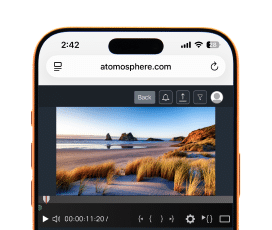
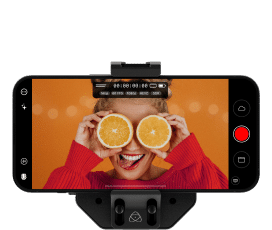
Display Optimization
Color Calibration
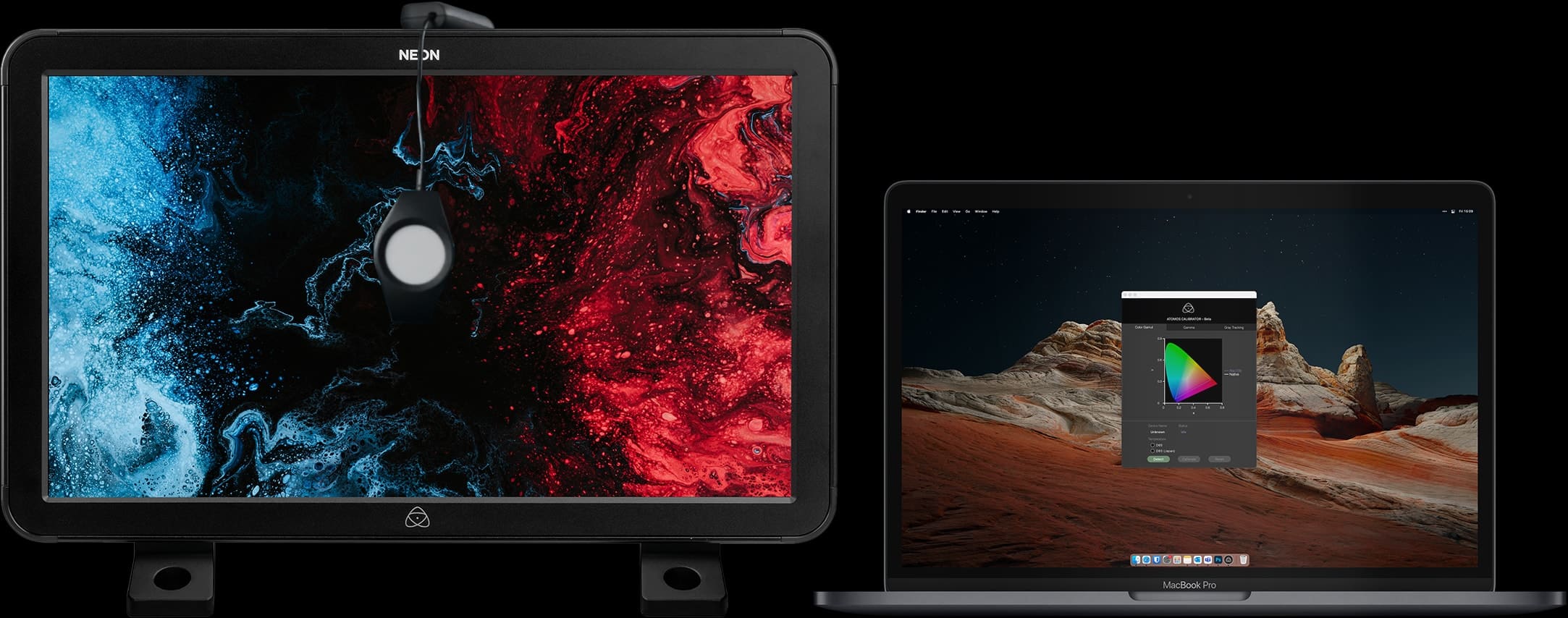
Every monitor in the field and the editing suite naturally drifts in color over time. Atomos has partnered with the leader in calibration technology, Calibrite, to open up professional display calibration to all filmmakers using our products with their Calibrite Display Pro HL / Plus HL. (Previous-generation Calibrite ColorChecker Display Pro / Display Plus and X-Rite i1Display Pro / i1Display Pro Plus are also supported.)
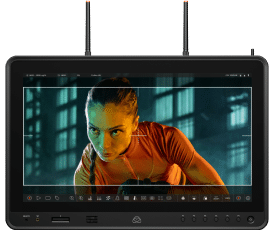
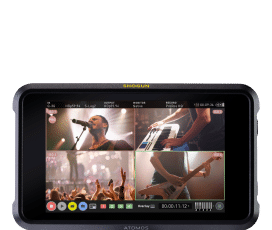
Most Atomos monitors can be calibrated using the Atomos Calibrator desktop app on a Windows PC or Mac. Selected models also support on-device calibration, allowing you to connect a supported calibrator directly to the monitor without a computer.
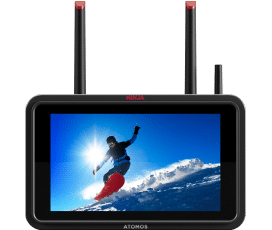
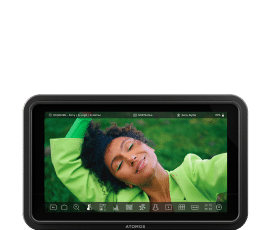
Shinobi II, Shinobi 7 II and Shinobi 7 RX support on-device calibration by plugging the calibrator directly into the monitor.
For other Atomos devices, see the compatibility information and calibration instructions below.
DESKTOP CALIBRATION APP
How it works
Before you follow the steps below to perform the calibration, the Atomos device needs to be switched on, with an image on the screen, and your Calibrite calibration device plugged into your computer via USB for at least 30 minutes. Calibration should also be performed in a dark environment, at a temperature between 22˚C to 30˚C.
- Download the latest version of Atomos Calibrator software from the bottom of this page.
- Unpack the ZIP file and install the Atomos Calibrator software.
- Connect the 2.5mm jack of the USB to Serial cable to the LANC/Remote port of your Atomos device, and the USB connector into your Windows PC or Mac. On the Ninja, Shogun or Shinobi 7, set the Remote mode in the Input menu to Calibration/LANC.
- Launch the Atomos Calibrator software.
- Uncover the lens and place the probe in the center of the LCD of your Atomos device and make sure that it doesn’t move during the calibration process. The foam seal around the probe must sit flat on the LCD to ensure that no light can enter the sensor.
- In the Atomos Calibrator software, press Detect.
- After your device is detected, press Calibrate to initiate the calibration process.
You can find in-depth instructions, and the full list of monitors-recorders compatible with our Atomos Calibrator software via this link.
SOFTWARE
Atomos Calibrator Software
The current version of Atomos Calibrator software is available for download at the bottom of this page. It has been tested on Mac and PC and supports calibration of most Atomos monitors.
Current calibration support
Most Atomos monitors with a “Remote” port support calibration using the latest version of Atomos Calibrator software.
Ninja
|
Shinobi
|
Shogun
|
Sumo
Neon
|
Legacy Products
To calibrate legacy products, Atomos Calibrator version 1.5 is required. You can find in-depth instructions, links to download version 1.5 and the full list of Monitors/Recorders compatible with our Atomos Calibrator software via this link.
- Ninja Inferno
- Ninja Flame
- Ninja Assassin
- Ninja Blade
- Samurai Blade
- Shogun Inferno
- Shogun Flame
- Shogun
- Shogun Studio
- Sumo 19M
Products not currently supported
Shogun AV-19M does not currently support calibration.
Calibration Software
Join the Atomos Community!
Sign up to get the latest Atomos news, filmmaking tips, firmware updates, and early access to new products and cloud tools.